Gong Integration Guide
Overview
The Gong integration allows you to seamlessly sync your sales call data, transcripts, and analytics from Gong into Skrift. This powerful integration helps you capture and analyze customer interactions to improve sales performance and gain deeper insights into your customer relationships.
What You Can Do
- Call Analytics & Insights - Automatically sync call recordings and transcripts
- Automated Conversation Scoring - Access quality metrics and performance data
- Customer Sentiment Tracking - Understand customer sentiment from conversations
- Meeting Summaries - Leverage auto-generated summaries of your calls
- Account Matching - Intelligently connect calls to your CRM accounts
Prerequisites
Before connecting Gong to Skrift, ensure you have:
- An active Gong account with access to call data
- Admin permissions in Skrift (required to connect integrations)
- Access to at least one Gong workspace
- Ability to configure webhooks in your Gong settings (for real-time sync)
Connecting Gong to Skrift
Step 1: Initiate Connection
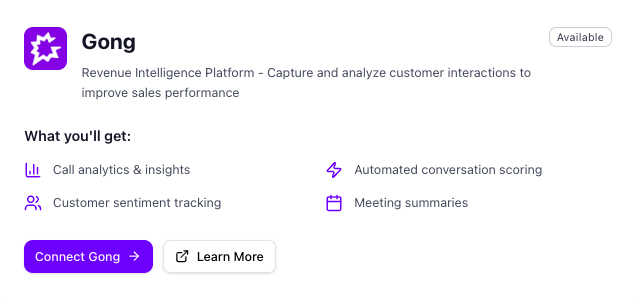
- Navigate to Settings > Integrations in Skrift
- Locate the Gong integration card
- Click the Connect Gong button
Step 2: Review Permissions
You'll see a dialog explaining what data Skrift will access:
What Skrift Will Access:
- Call recordings and transcripts
- Participant information and meeting details
- Call metadata and sentiment scores
Click Continue to Gong to proceed.
Step 3: Authorize in Gong
You'll be redirected to Gong's authorization page where you'll:
- Sign in to your Gong account (if not already logged in)
- Review the permissions Skrift is requesting
- Click Authorize to grant access
Step 4: Return to Skrift
After authorizing, you'll be automatically redirected back to Skrift. You should see a success message and the Gong integration will now show as Connected.
Configuration Guide
Once connected, you'll need to configure your integration settings to start syncing data.
Accessing Settings
- Go to Settings > Integrations
- Find the Gong card (now showing "Connected")
- Click Manage
You'll see two tabs: Settings and Unmatched Calls
Settings Tab
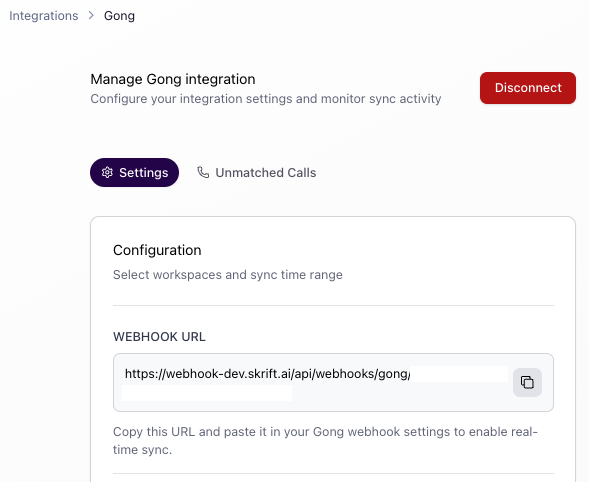
1. Webhook Configuration (Real-Time Sync)
For real-time call syncing, you need to create an automation rule in Gong that fires a webhook:
Step 1: Copy Your Webhook URL from Skrift
- In Skrift, copy the Webhook URL displayed in your Gong integration settings
- Format:
https://webhook-dev.skrift.ai/api/webhooks/gong/[your-unique-id] - This URL is unique to your organization
Step 2: Create Automation Rule in Gong
- Log in to your Gong account
- Navigate to the Automation rules page
- Click + Add Rule to create a new rule
Step 3: Configure Call Filters
- Click the filter icon to define which calls the rule applies to
- Set up filters based on your needs (or leave empty to apply to all calls)
- Click SAVE to add the filters to the rule
Step 4: Configure Webhook Action
- In the Action dropdown, Fire webhook is selected by default
- In the Destination URL field, paste your Skrift webhook URL
- For the authentication method, select URL includes key. The Skrift webhook URL already contains the necessary security token.
- Enter a descriptive rule name (e.g., "Skrift Call Sync")
- Add an optional description (e.g., "Send completed calls to Skrift for analysis")
Step 5: Test the Webhook
- Gong will display a sample call that matches your filters
- Click Select a different call if you want to test with a specific call
- Click Test now
- You should see a success message in green at the top of the screen
- Verify the call appears in Skrift to confirm the webhook is working
Step 6: Enable the Rule
- Toggle the rule status switch to Enabled
- The webhook will now fire automatically when new calls match your filters
What This Does: When a call in Gong matches your rule filters, Gong will automatically notify Skrift via the webhook, triggering an immediate sync of that call's data.
2. Workspace Selection
Choose which Gong workspaces to sync from:
- You'll see checkboxes for each available workspace
- Select one or more workspaces you want to sync
- Note: At least one workspace must be selected
3. Sync Time Range
Configure the date range for historical data sync:
- From Date: Start date for call data (default: 6 months ago)
- To Date: End date for call data (default: today)
4. Save and Sync
- Click Save Configuration to save your workspace and date range settings
- Click Sync Now to immediately trigger a historical sync with your current settings
Monitoring Sync Jobs
After triggering a sync, you'll see a Sync Jobs card showing recent sync activity:
| Column | Description |
|---|---|
| UUID | Unique identifier for the sync job |
| Date/Time | When the sync was initiated |
| Status | Current status of the sync job |
Status Indicators:
- Success (green) - Sync completed successfully
- Pending (blue) - Sync is currently running
- Failed (red) - Sync encountered an error
The footer shows a summary: "X Success, Y Failed, Z Pending"
Screenshot: Sync Jobs Table
Managing Unmatched Calls
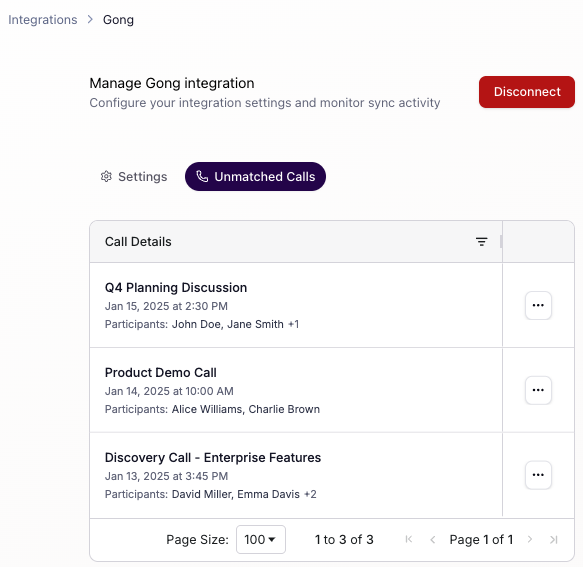
The Unmatched Calls tab shows calls from Gong that couldn't be automatically matched to accounts in your CRM.
Viewing Unmatched Calls
Each call displays:
- Call Title/Name
- Date and Time (e.g., "Jan 15, 2025 at 2:30 PM")
- Participants (names and emails)
- Shows first 2 participants
- Hover over "+N" to see additional participants
Matching a Call to an Account
- Click the
 (three dots) menu on a call
 - Select Select Account
- In the modal:
- Review the call details displayed
- Use the search box to find the correct account
- Select the account from the dropdown
- Click Save to confirm
What Happens Next: The call will be associated with the selected account and removed from the unmatched calls list.
Ignoring a Call
If a call isn't relevant to any account:
- Click the (three dots) menu on a call
- Select Ignore
- Confirm in the dialog
Note: Ignored calls will be removed from the unmatched list and will not be associated with any account.
Data Syncing Explained
Three Ways Data Syncs
1. Real-Time Webhook Sync
- When: Immediately after a call ends in Gong
- Requirements: Webhook URL must be configured in Gong
- What Syncs: The completed call with full transcript and metadata
- Best For: Staying up-to-date with the latest calls
2. Manual Historical Sync
- When: You click "Sync Now"
- What Syncs: All calls within your configured date range and selected workspaces
- Best For: Initial setup or syncing specific date ranges
3. Daily Automated Sync
- When: Runs automatically every day
- What Syncs: Calls from the past 2 days
- Best For: Catching any missed webhook events
- Note: This happens in the background without user action
What Gets Synced
From each call, Skrift syncs:
- Full call transcript with speaker identification
- Participant information (names, emails, roles)
- Call duration and recording details
- Call metadata (date, time, workspace)
- Scoring and sentiment data
- Custom fields and tags
Best Practices
Initial Setup
- Connect the integration first
- Configure the webhook in Gong immediately for real-time sync
- Select relevant workspaces (not necessarily all of them)
- Start with a manageable date range (3-6 months) for your first sync
- Monitor the first sync job to ensure it completes successfully
Ongoing Maintenance
- Review unmatched calls weekly to ensure proper account association
- Check sync job status if you notice missing calls
- Update workspace selection when your team structure changes
- Keep webhook configured in Gong for uninterrupted real-time sync
Data Quality
- Match calls promptly to maintain accurate account histories
- Use meaningful workspace names in Gong for easier selection
- Review ignored calls periodically to ensure no important data is missed
Troubleshooting
Calls Not Appearing in Skrift
Possible Causes:
- Webhook not configured
- Solution: Verify the webhook URL is set up correctly in Gong settings
- Check that the event type is set to "Call Completed"
- Wrong workspace selected
- Solution: Verify the workspace containing your calls is checked in Skrift settings
- Date range issue
- Solution: Ensure your date range includes the call dates you're looking for
- Sync job failed
- Solution: Check the Sync Jobs table for failed jobs
- Try triggering a manual sync with "Sync Now"
Connection Issues
"Invalid state or code" Error:
- This typically happens if the OAuth flow was interrupted
- Solution: Clear your browser cache and try reconnecting
Sync Job Stuck on "Pending":
- Large date ranges may take time to process
- If pending for more than 30 minutes, try triggering a new sync
- Contact support if the issue persists
Webhook Not Working
- Verify the automation rule in Gong:
- Go to the Automation rules page in Gong
- Ensure your Skrift webhook rule is Enabled
- Check that the destination URL matches exactly what's shown in Skrift
- Check rule filters:
- Review the call filters in your automation rule
- Ensure the calls you expect to sync match the rule's filter criteria
- Try temporarily removing filters to test if all calls sync
- Test the webhook:
- In the automation rule, click Test now with a sample call
- Check if the test call appears in Skrift within a few minutes
- If the test succeeds but live calls don't appear, double-check your filters
- Verify authentication method:
- Ensure you selected URL includes key as the authentication method
- The Skrift webhook URL already contains the necessary token
Token Expiration
If you see authentication errors:
- Skrift automatically refreshes tokens, but if this fails:
- Solution: Disconnect and reconnect the integration
Security & Privacy
How Your Data is Protected
- OAuth 2.0 Authentication: Skrift never stores your Gong username or password
- Encrypted Storage: Access tokens and refresh tokens are encrypted at rest
- Secure Transmission: All data transfers use HTTPS encryption
- Access Control: Only users with admin permissions can manage the integration
Revoking Access
To disconnect Gong from Skrift:
- Go to Settings > Integrations > Gong > Manage
- Click the red Disconnect button
- Confirm the disconnection
Additionally, you can revoke access in Gong:
- Log in to your Gong account
- Navigate to Settings > Security > OAuth Applications
- Find Skrift and click Revoke
Frequently Asked Questions
General Questions
Q: How often is data synced?
A: Data syncs in three ways:
- Immediately via webhook when calls complete (if configured)
- Daily automated sync for calls from the past 2 days
- On-demand when you click "Sync Now"
Q: Can I connect multiple Gong accounts?
A: No, each Skrift organization can only connect one Gong account at a time.
Q: Can I select multiple workspaces?
A: Yes! You can select as many workspaces as you need. At least one must be selected.
Q: How far back can I sync historical data?
A: You can sync calls from any date in the past by adjusting the "From Date" in your settings. However, very large date ranges may take longer to process.
Q: Do I need to be a Gong admin to connect the integration?
A: No, you need admin permissions in Skrift, but standard Gong user access is sufficient. However, you'll need appropriate permissions in Gong to configure webhooks.
Configuration Questions
Q: What happens if I don't configure the webhook?
A: You'll still get data through the daily automated sync (past 2 days) and manual syncs, but you won't have real-time updates when calls complete.
Q: Can I change my workspace selection later?
A: Yes, you can update workspace selection at any time. Click "Save Configuration" after making changes.
Q: What if I change the date range after the first sync?
A: Changing the date range only affects future manual syncs (when you click "Sync Now"). Previously synced data remains unchanged.
Q: Can I sync calls from a specific date range multiple times?
A: Yes, but Skrift prevents duplicate calls from being synced. If a call already exists, it won't be synced again.
Data & Sync Questions
Q: Why are some calls showing as "unmatched"?
A: Calls appear as unmatched when Skrift can't automatically determine which CRM account they belong to. This might happen if:
- Participants aren't in your CRM
- Multiple potential account matches exist
- Email domains don't match account records
Q: What happens after I match a call to an account?
A: The call becomes associated with that account in Skrift, providing context and history for that customer relationship. It will no longer appear in the unmatched calls list.
Q: Can I un-ignore a call?
A: Once a call is ignored, it's removed from the unmatched calls list. If you need to access it again, you may need to contact support.
Q: How long do sync jobs take?
A: This depends on the date range and number of calls:
- Small ranges (1-2 months): A few minutes
- Large ranges (6-12 months): 10-30 minutes
- Very large ranges (1+ years): 30+ minutes
Q: Why did my sync job fail?
A: Common reasons include:
- Temporary connection issues with Gong
- Invalid date range (start date after end date)
- Token expiration (try disconnecting and reconnecting)
- No workspaces selected
Technical Questions
Q: What permissions does Skrift request from Gong?
A: Skrift requests these OAuth scopes:
api:calls:read:transcript- Access call transcriptsapi:calls:read:extensive- Detailed call data with participantsapi:calls:read:basic- Basic call metadataapi:workspaces:read- Workspace information
Q: Can I use Skrift's API to access synced Gong data?
A: Please refer to Skrift's API documentation or contact support for information about API access to integration data.
Q: Does Skrift sync deleted calls from Gong?
A: No, if a call is deleted in Gong, it will no longer be accessible via the API and won't sync to Skrift.
Q: What happens if I disconnect and reconnect Gong?
A: When you reconnect, you'll need to reconfigure your settings (workspaces, date range, webhook). Previously synced data remains in Skrift unless explicitly deleted.
Billing & Limits
Q: Does the Gong integration cost extra?
A: The Gong integration availability and pricing depends on your Skrift plan. Contact your account manager for details.
Q: Are there limits on how many calls I can sync?
A: Limits, if any, are based on your Skrift plan. Check with your account manager for specific limits.
Q: Does syncing affect my Gong API rate limits?
A: Skrift makes API calls to Gong on your behalf. For large historical syncs, this may temporarily increase API usage, but should not affect normal Gong operation.
Need More Help?
If you're experiencing issues not covered in this guide:
- Check Sync Job Status: Look at the Sync Jobs table for specific error messages
- Review Webhook Configuration: Ensure the automation rule is enabled and the webhook URL is correctly configured in Gong
- Contact Support: Reach out to Skrift support with:
- Description of the issue
- Screenshots of any error messages
- Sync job UUID if applicable
- Date range and workspaces you're trying to sync
Quick Reference
Common Tasks
| Task | Steps |
|---|---|
| Connect Gong | Settings > Integrations > Gong > Connect > Authorize in Gong |
| Configure Webhook | Copy webhook URL from Skrift > Gong Automation rules > + Add Rule > Fire webhook > Paste URL > Test > Enable |
| Select Workspaces | Manage Gong > Settings tab > Check desired workspaces > Save Configuration |
| Manual Sync | Manage Gong > Settings tab > Sync Now |
| Match a Call | Manage Gong > Unmatched Calls tab > > Select Account |
| Ignore a Call | Manage Gong > Unmatched Calls tab > > Ignore |
| Check Sync Status | Manage Gong > Settings tab > View Sync Jobs table |
| Disconnect | Manage Gong > Disconnect button (red) |